FlowShare
FlowShare help
How FlowShare works, what it needs and where to get support.
What FlowShare is
FlowShare is a file-sharing application for a FlowClick account. Your team keeps files in personal and team spaces, shares them with anyone by link, collects files from outsiders with drop links, and invites named guests into specific team spaces.
There are three kinds of people: members (invited people who use FlowShare every day; a member can also be a manager), guests (people outside your team, invited by email into one or more team spaces) and link holders (anyone who has a share or drop link address; they have no account).
First run
A new installation has no users. The first person to open setup.html creates the first manager account with a name, an email address and a password of at least 8 characters. The setup page works only once: as soon as any user exists it says FlowShare is already set up and sends people to sign in.
After that, a manager opens Admin → Readiness to see what the installation still needs (see Readiness page).
Inviting members and guests
Members: a manager opens Admin → Invite a member, enters an email address, a name and a role (member or manager). FlowShare emails the invitation if mail sending is set up, and shows the accept link once so you can send it yourself. The invited person chooses a display name and a password on the accept page.
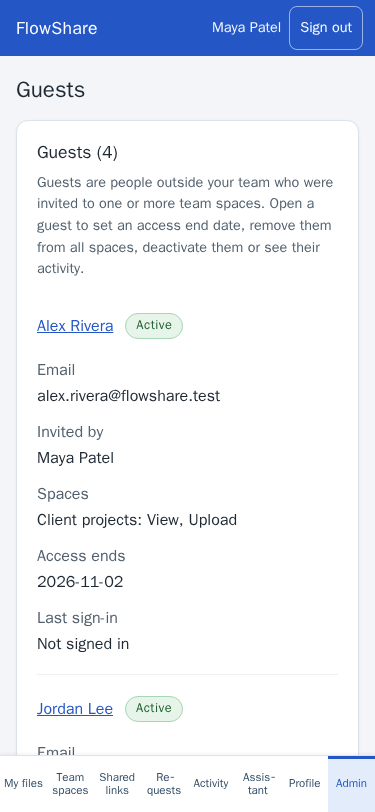
Guests: a member who manages a team space opens the space's Manage access page and invites a guest by email. A guest can use only the spaces they are invited to. The emailed link works once and expires in 7 days. If the email already belongs to someone, they are given access instead.
Managers see every guest on Admin → Guests: set the date their access ends, remove them from all spaces, deactivate them, or read their activity. An hourly check ends guest access after its end date.
Spaces, uploading, versions and trash
Every member has a personal space. Managers create team spaces on the Spaces page. On a space's Manage access page, people get one of four rights: View, Upload, Edit or Manage (every right includes View). A team space always keeps at least one manager.
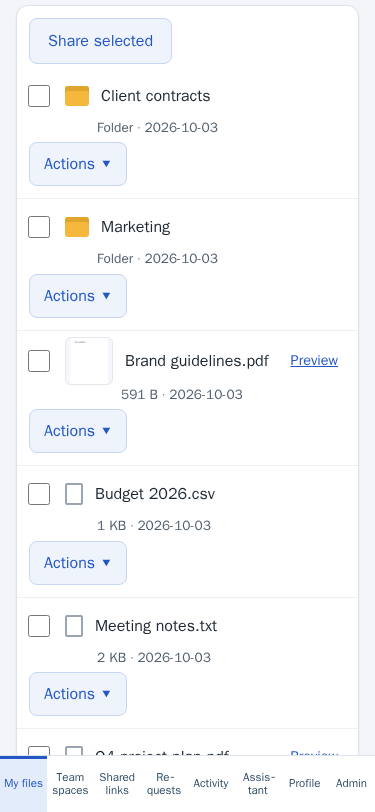
My files lists your folders and files. Upload files, make folders, search by name, preview images and PDFs, download a file, or download a folder as a zip.
Uploading a file with the same name as an existing one creates a new version. The version history lists every version, newest first; restoring an earlier version saves it again as the newest version, and no version is deleted.
Deleted items go to the Trash. They stay there for 30 days (a manager can change this in Settings), then a daily job deletes them permanently. Restoring a folder restores everything that was trashed with it.
Sharing by link
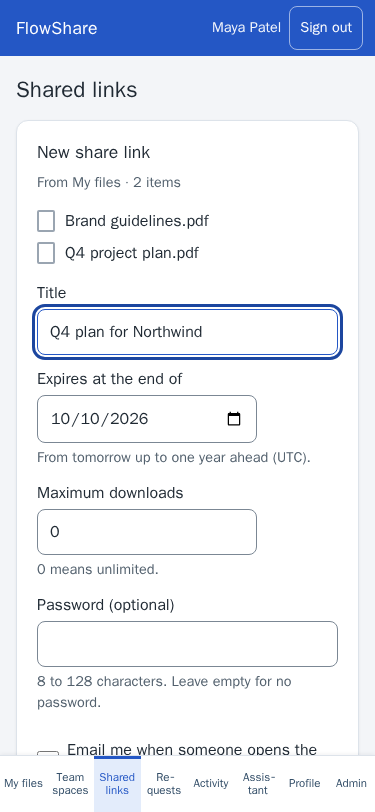
Select files or folders on My files and choose Share. A share link has:
- a title;
- an expiry date — 7 days by default (a manager can change the default in Settings), from tomorrow up to one year ahead;
- an optional password of 8 to 128 characters;
- an optional maximum number of downloads (0 means unlimited);
- an option to email you when someone opens the link.
The link address is shown only once. If you lose it, open the link and choose New link address. Open Links to see your links, change one or revoke it; a revoked link stops working at once, and every download ticket already issued for it is revoked too.
Requesting files with drop links
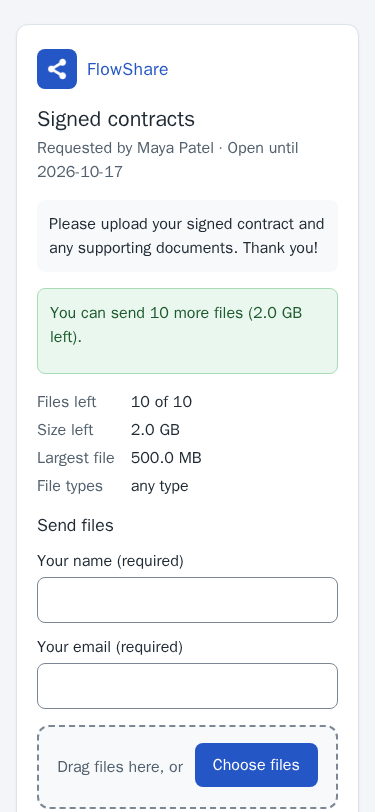
A drop link lets anyone with its address upload files into one of your folders. On Requests, choose the folder, a title, an optional message for uploaders, the expiry (1 to 90 days), the maximum number of files (1 to 100), the maximum total size, the allowed file types, and whether uploaders must give their name and email.
Files received through a drop link are held in quarantine until the virus scan verdict is clean. Only then do they move into your folder and can be downloaded. A file that is not clean is never downloadable.
Account files from other apps
Managers can open Admin → Account files to browse, read-only, the folders and files that other applications in the same FlowClick account store, and add a file to a space. The file stays in its own application: the space gets a linked entry that people with access can download, and nothing is copied.
This needs the files.account capability. A FlowClick account admin grants it to FlowShare once per installation (capability grants are not carried by the install package).
Assistant panel
The Assistant page helps you:
- find a file — it turns your words into a search, and shows only what you can see;
- summarise a text file (TXT, Markdown, CSV, JSON, XML or HTML, up to 1 MB);
- draft the message that goes with a share link — it sees the item names, the expiry date and whether a password is set, never the link address or the password;
- hand off a file or link name and a note to a colleague's own assistant, when Brain delegation is turned on for the account.
The assistant uses the account's built-in AI and never receives the file itself.
Storage and plans
Installed from the FlowClick marketplace, FlowShare's free plan stores up to 5 GB (5 GiB). A paid plan raises the limit. Storage counts every version of every file, plus drop uploads waiting for their scan verdict.
Managers see the limit and what is used in Settings and on the Readiness page. When storage is full, new uploads are refused until a manager moves FlowShare to a larger plan or empties the Trash.
Readiness page
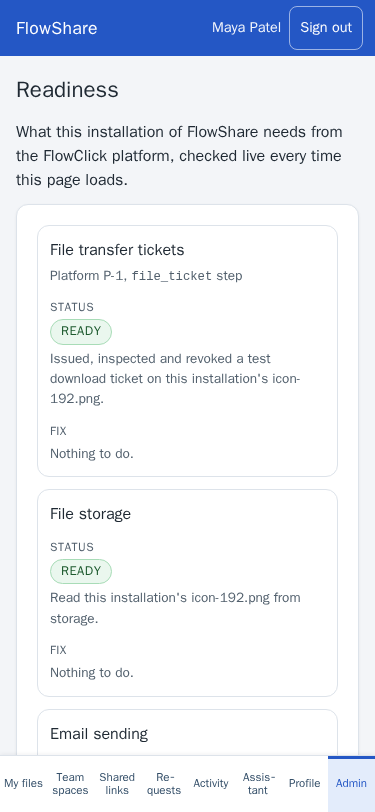
Admin → Readiness checks, live on every load, what this installation needs from the FlowClick platform. READY means the check succeeded on this request; MISSING shows the fix and who can do it.
- File transfer tickets
- Downloads and uploads need the platform's transfer tickets. If MISSING, they are not available in this environment.
- File storage
- FlowShare can read from storage. If MISSING, contact your FlowClick administrator.
- Email sending
- Send a test email from the page; if it fails, configure outbound mail for the FlowClick account. Invitations, notifications and summaries need it.
- Required table triggers
- If one is missing or disabled, re-install the current FlowShare version or ask your FlowClick administrator.
- Member identities linked
- If MISSING, a FlowClick administrator runs the platform identity backfill for FlowShare.
- Scheduled jobs
- The daily trash clean-up, the hourly guest access end, the hourly link-expiry reminders and the daily summary email must be enabled.
- Previews
- Server renders of images. If MISSING, previews show type icons.
- PDF previews
- PDF first pages are rendered through the platform browser service. If MISSING, PDFs show a type icon.
- Virus scanning
- Scan verdicts for files received through drop links. If MISSING, the platform operator turns on upload scanning; until then received files stay in quarantine.
- FlowMail integration
- Lets FlowMail save attachments to FlowShare and send large files as links. A manager issues a key under Admin → Integrations.
- Account files (files.account)
- If MISSING, a FlowClick account admin grants the files.account capability to FlowShare.
- Storage
- What is used against your plan or limit. If full, move to a larger plan or empty the Trash.
- Assistant
- If the last assistant request failed, check the account's AI settings.
- Assistant hand-off
- Needs Brain delegation turned on for the account and members linked to account identities.
Privacy and security
- Every download is delivered as an attachment through a single-use transfer ticket that FlowShare issues only after checking your rights. Files are never served straight from a public folder.
- Previews are images rendered by the server, never the uploaded file shown in the browser.
- Link and drop addresses are stored only as fingerprints, and link passwords only as hashes.
- Nothing is copied from other applications: account files stay where they are.
- Guests see only the spaces they are invited to. Deactivating a guest ends all their access at once.
Limits
- 500 MB per file (the platform upload ceiling; a manager can set a lower limit in Settings).
- Folder zip downloads up to 64 MB.
- Drop links: up to 100 files and 10 GB in total per link, open for 1 to 90 days.
- Share links: open for up to one year.
Support
Email dan@ludowise.com. Please say which FlowClick account you use and what you were doing, and include the Readiness page if something is MISSING.
Not included
- No desktop sync client, WebDAV or SFTP.
- No real-time co-editing or Office/Google document editing.
- No bring-your-own storage bucket.
- No sharing with other FlowClick accounts except through links and guests.
- No e-signature, DRM or watermarking.